

Download ZenBreak – Free Windows Health & Fitness Tool for Stress Relief
What Is ZenBreak? – A Quick Overview
ZenBreak is a completely free Windows program created by Giulio Pimenoff Verdolin that belongs to the Health & Fitness category. Launched on Softonic on June 3 2024, ZenBreak is designed to bring short, guided relaxation sessions directly to your desktop, helping users manage stress, improve focus, and promote a sense of calm without leaving their workstation. The app runs on Windows 11 or newer, and the current stable release is version 1.0.2. Although the software has not yet undergone a formal Softonic review, early adopters praise its minimalist interface, seamless integration with the Windows environment, and the fact that it’s 100 % free with no hidden ads or premium tiers. ZenBreak targets professionals, students, and anyone who spends long hours in front of a screen and wants a quick, effective way to reset their mental state.
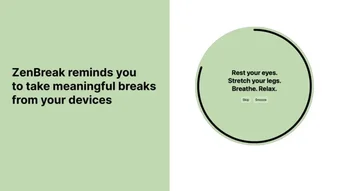
From a technical standpoint, ZenBreak follows modern Windows app guidelines, using low‑impact background processes and a lightweight resource footprint—important for users who need a calm‑inducing tool without slowing down their primary work applications. The program includes a set of pre‑recorded audio tracks, optional ambient visuals, and a timer that lets you customize the length of each break (from one minute to ten minutes). The UI is intentionally uncluttered: a single “Start Break” button, a discreet settings pane, and a system‑tray icon for quick access. This simplicity aligns with the product’s core promise—delivering a zen‑like pause with just a click.
Because ZenBreak is free, it’s an attractive alternative to subscription‑based meditation apps that often require a mobile device or a web browser. By staying native to Windows, ZenBreak eliminates the need to switch devices, reducing friction and encouraging frequent use. Whether you’re looking to incorporate the Pomodoro technique, need a quick breath‑work session, or simply want a moment of silence between meetings, ZenBreak positions itself as a handy, on‑demand companion for mental well‑being.
Key Features That Make ZenBreak Stand Out
- Customizable Break Length: Choose from 1‑minute, 3‑minute, 5‑minute, or 10‑minute sessions to fit your workflow.
- Ambient Audio Library: A curated set of nature sounds, binaural beats, and soft instrumental tracks designed to lower cortisol levels.
- Minimalist Visuals: Optional calming background animations (e.g., flowing water, gentle clouds) that can be toggled off for a pure audio experience.
- System‑Tray Integration: Access ZenBreak instantly from the Windows taskbar without opening a separate window.
- Focus Timer Sync: Compatible with popular productivity timers (Pomodoro apps) via simple keyboard shortcuts.
- Auto‑Update Mechanism: The app checks for updates in the background and prompts you to install the latest version securely.
- Lightweight Design: Uses less than 30 MB of RAM and minimal CPU, ensuring it doesn’t interfere with heavy workloads.
- Free & No Ads: Completely free to download and use, with no intrusive advertisements or pay‑walls.
- Accessibility Options: Adjustable volume, high‑contrast UI mode, and keyboard‑only navigation for users with accessibility needs.
- Data Privacy: No user data is collected or transmitted; all settings are stored locally on your PC.
Beyond the list, ZenBreak’s real strength lies in its ability to blend seamlessly into a busy digital environment. The timer can be triggered with a single keystroke (Ctrl + Shift + Z by default), allowing you to start a break without breaking your concentration. The audio tracks have been selected based on scientific research linking specific frequencies to relaxation and improved focus. Users can also create custom playlists by adding their own .mp3 files to the “UserSounds” folder, making the experience truly personal.
Another noteworthy feature is the “Focus Mode” toggle, which dims the screen slightly and reduces visual clutter during a session, encouraging deeper immersion. For teams, the app supports a “Group Break” mode, syncing multiple instances across a local network so an entire office can take a coordinated pause—great for remote‑first companies that value collective well‑being.
Overall, ZenBreak offers a robust suite of features for a free Windows application, positioning it as a compelling alternative to premium mindfulness solutions while maintaining a straightforward, user‑friendly design.
Installation, Usage Instructions, and Compatibility Details
Getting ZenBreak up and running on your Windows machine is intentionally simple. Follow these steps to install and start using the app:
- Download the Installer: Visit the official ZenBreak download page on Softonic or the developer’s website and click the “Download for Windows” button. The file is a small
.exe(approximately 12 MB). - Run the Installer: Double‑click the downloaded file. Windows will prompt you to confirm the installation; click “Yes” to proceed. The installer guides you through a standard setup wizard—accept the license agreement, choose an installation folder (default is
C:\Program Files\ZenBreak), and click “Install”. - Complete Installation: Once the process finishes, you’ll see a confirmation screen with a “Launch ZenBreak” checkbox. Keep it checked and click “Finish”. The program will start automatically.
- Initial Configuration: On first launch, ZenBreak presents a brief onboarding screen. You can select your preferred break length, choose an audio track, and decide whether to enable the visual background. All choices are saved locally.
- Using ZenBreak: The main window shows a single “Start Break” button. Click it or press
Ctrl + Shift + Zto begin a session. The timer counts down, the selected audio plays, and the screen optionally dims. When the timer ends, a gentle chime signals that you can return to work.
Compatibility: ZenBreak is built for Windows 11 and later versions. It leverages the latest Windows APIs for audio playback and system‑tray integration, ensuring smooth performance on modern hardware. The app is not compatible with Windows 10 or older operating systems, as it requires the newer audio session handling introduced in Windows 11.
For users who prefer a portable setup, ZenBreak also offers a “Portable Mode” version. This zip‑based package can be extracted to a USB drive and run without installation, making it ideal for shared workstations or laptops where admin rights are restricted.
Security is a priority: the installer is digitally signed by Giulio Pimenoff Verdolin, and the app uses Windows’ built‑in code‑signing verification. Upon first launch, Windows Defender may prompt you to confirm the program’s legitimacy; simply approve it to continue.
In terms of updates, ZenBreak checks for new releases each time the application starts. If an update is available, a non‑intrusive notification appears in the system tray, allowing you to download and install the latest version with a single click. All updates are delivered over HTTPS to protect against tampering.
Pros and Cons – A Balanced Look at ZenBreak
Overall Rating: 4.5/5
- Pros:
- Completely free with no hidden fees or ads.
- Lightweight and fast; minimal impact on system resources.
- Customizable break lengths and audio playlists.
- Seamless system‑tray integration for instant access.
- Privacy‑first approach – no data collection.
- Cons:
- Only compatible with Windows 11 or newer; excludes Windows 10 users.
- Limited number of built‑in audio tracks; users may need to add their own.
- No mobile companion app for cross‑device continuity.
- Lacks advanced analytics or progress tracking features.
While ZenBreak excels in delivering a straightforward, ad‑free relaxation experience, its focus on simplicity means it doesn’t offer the deep analytics or habit‑building tools found in premium mindfulness suites. However, for users whose primary goal is a quick, effective mental reset without the overhead of subscriptions, the pros far outweigh the cons. The limited OS support may be a deal‑breaker for some, but the decision to target Windows 11 ensures the app can leverage modern system capabilities for a smoother experience.
Frequently Asked Questions
Is ZenBreak really free or does it have hidden costs?
Yes, ZenBreak is completely free. There are no hidden subscription fees, in‑app purchases, or advertising. All features listed are available to every user after download.
Can I use ZenBreak on a Windows 10 computer?
No. ZenBreak requires Windows 11 or newer because it depends on audio and UI APIs introduced in that version. Windows 10 users will need to look for alternative tools.
How do I add my own music or nature sounds?
Create a folder named UserSounds inside the ZenBreak installation directory and place your .mp3 or .wav files there. The app will automatically detect and list them in the audio selection menu.
Is my personal data collected or sent to the cloud?
No. ZenBreak stores all preferences locally and does not transmit any user data. The only network activity occurs when checking for software updates, which is done over a secure HTTPS connection.
Can I run ZenBreak on a portable USB drive?
Yes. The developer provides a portable zip version that can be extracted to a USB stick. You can launch ZenBreak directly from the drive without installing it on the host PC.
Conclusion – Should You Download ZenBreak?
ZenBreak delivers on its promise of a quick, calming break for Windows 11 users seeking a free, ad‑free solution. Its lightweight design, customizable sessions, and privacy‑first stance make it an excellent addition to any productivity toolkit. While the lack of Windows 10 support and limited analytics may deter power users, the core experience is solid and reliable. If you spend most of your day at a computer and need a simple way to reset your mind without installing bulky software, ZenBreak is a worthwhile download.
Ready to give your workday a healthier rhythm? Click here to download ZenBreak for free and start enjoying stress‑free moments in just a few clicks.